
Tcpdump usage examples
- Detalhes
- Categoria: Artigos
In most cases you will need root permission to be able to capture packets on an interface. Using tcpdump (with root) to capture the packets and saving them to a file to analyze with Wireshark (using a regular account) is recommended over using Wireshark with a root account to capture packets on an "untrusted" interface. See the Wireshark security advisories for reasons why.
See the list of interfaces on which tcpdump can listen:
tcpdump -D
Listen on interface eth0:
tcpdump -i eth0
Listen on any available interface (cannot be done in promiscuous mode. Requires Linux kernel 2.2 or greater):
tcpdump -i any
Be verbose while capturing packets:
tcpdump -v
Be more verbose while capturing packets:
tcpdump -vv
Be very verbose while capturing packets:
tcpdump -vvv
Be verbose and print the data of each packet in both hex and ASCII, excluding the link level header:
tcpdump -v -X
Be verbose and print the data of each packet in both hex and ASCII, also including the link level header:
tcpdump -v -XX
Be less verbose (than the default) while capturing packets:
tcpdump -q
Limit the capture to 100 packets:
tcpdump -c 100
Record the packet capture to a file called capture.cap:
tcpdump -w capture.cap
Record the packet capture to a file called capture.cap but display on-screen how many packets have been captured in real-time:
tcpdump -v -w capture.cap
Display the packets of a file called capture.cap:
tcpdump -r capture.cap
Display the packets using maximum detail of a file called capture.cap:
tcpdump -vvv -r capture.cap
Display IP addresses and port numbers instead of domain and service names when capturing packets (note: on some systems you need to specify -nn to display port numbers):
tcpdump -n
Capture any packets where the destination host is 192.168.1.1. Display IP addresses and port numbers:
tcpdump -n dst host 192.168.1.1
Capture any packets where the source host is 192.168.1.1. Display IP addresses and port numbers:
tcpdump -n src host 192.168.1.1
Capture any packets where the source or destination host is 192.168.1.1. Display IP addresses and port numbers:
tcpdump -n host 192.168.1.1
Capture any packets where the destination network is 192.168.1.0/24. Display IP addresses and port numbers:
tcpdump -n dst net 192.168.1.0/24
Capture any packets where the source network is 192.168.1.0/24. Display IP addresses and port numbers:
tcpdump -n src net 192.168.1.0/24
Capture any packets where the source or destination network is 192.168.1.0/24. Display IP addresses and port numbers:
tcpdump -n net 192.168.1.0/24
Capture any packets where the destination port is 23. Display IP addresses and port numbers:
tcpdump -n dst port 23
Capture any packets where the destination port is is between 1 and 1023 inclusive. Display IP addresses and port numbers:
tcpdump -n dst portrange 1-1023
Capture only TCP packets where the destination port is is between 1 and 1023 inclusive. Display IP addresses and port numbers:
tcpdump -n tcp dst portrange 1-1023
Capture only UDP packets where the destination port is is between 1 and 1023 inclusive. Display IP addresses and port numbers:
tcpdump -n udp dst portrange 1-1023
Capture any packets with destination IP 192.168.1.1 and destination port 23. Display IP addresses and port numbers:
tcpdump -n "dst host 192.168.1.1 and dst port 23"
Capture any packets with destination IP 192.168.1.1 and destination port 80 or 443. Display IP addresses and port numbers:
tcpdump -n "dst host 192.168.1.1 and (dst port 80 or dst port 443)"
Capture any ICMP packets:
tcpdump -v icmp
Capture any ARP packets:
tcpdump -v arp
Capture either ICMP or ARP packets:
tcpdump -v "icmp or arp"
Capture any packets that are broadcast or multicast:
tcpdump -n "broadcast or multicast"
Capture 500 bytes of data for each packet rather than the default of 68 bytes:
tcpdump -s 500
Capture all bytes of data within the packet:
tcpdump -s 0
Using Netcat for File Transfers
- Detalhes
- Categoria: Artigos
Using Netcat for File Transfers
Netcat is like a swiss army knife for geeks. It can be used for just about anything involving TCP or UDP. One of its most practical uses is to transfer files. Non *nix people usually don't have SSH setup, and it is much faster to transfer stuff with netcat then setup SSH. netcat is just a single executable, and works across all platforms (Windows,Mac OS X, Linux).
On the receiving end running,
nc -l -p 1234 > out.file
will begin listening on port 1234.
On the sending end running,
nc -w 3 [destination] 1234 < out.file
will connect to the receiver and begin sending file.
For faster transfers if both sender and receiver has some basic *nix tools installed, you can compress the file during sending process,
On the receiving end,
nc -l -p 1234 | uncompress -c | tar xvfp -
On the sending end,
tar cfp - /some/dir | compress -c | nc -w 3 [destination] 1234
A much cooler but less useful use of netcat is, it can transfer an image of the whole hard drive over the wire using a command called dd.
On the sender end run,
dd if=/dev/hda3 | gzip -9 | nc -l 3333
On the receiver end,
nc [destination] 3333 | pv -b > hdImage.img.gz
Be warned that file transfers using netcat are not encrypted, anyone on the network can grab what you are sending, so use this only on trusted networks.
This OVF package requires unsupported hardware
- Detalhes
- Categoria: Artigos
I was trying to import a virtual image in OVA format inside a Vmware ESXi (or vSphere Hypervisor as it is dubbed today) when I stumbled in this error:
This OVF package requires unsupported hardware.
Details: Line 33: Unsupported hardware family 'virtualbox-2.2'.
As you che see in the following image:
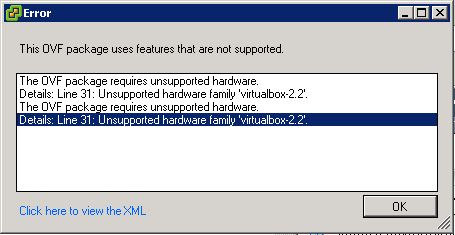
This error is mentioning some kind of unsupported hardware by vSphere hypervisor, what happened?
It usually occur when an OVA appliance exported by VirtualBox is imported in vSphere, the default hardware format used by VirtualBox doesn’t fit the vSphere one, so it is unable to understand how to import the machine.
To fix you should convert the OVA file in an OVF file compatible with vSphere, thus this post could be titled “how to convert and OVA in OVF” too.
First of all download the free converter: Vmware OFT Tool.
Now you can convert the OVA in an OVF with the following command:
ovftool.exe --lax source.ova destination.ovf
This command will create three files: a .MF file, an .OVF file and a .VMDK.
Open the .OVF file in a text editor and change all VirtualBox hardware.
Change this:
<vssd:VirtualSystemType>virtualbox-2.2</vssd:VirtualSystemType>
with:
<vssd:VirtualSystemType>vmx-07</vssd:VirtualSystemType>
Change this:
<Item>
<rasd:Address>0</rasd:Address>
<rasd:Caption>sataController0</rasd:Caption>
<rasd:Description>SATA Controller</rasd:Description>
<rasd:ElementName>sataController0</rasd:ElementName>
<rasd:InstanceID>5</rasd:InstanceID>
<rasd:ResourceSubType>AHCI</rasd:ResourceSubType>
<rasd:ResourceType>20</rasd:ResourceType>
</Item>
with:
<Item>
<rasd:Address>0</rasd:Address>
<rasd:Caption>SCSIController</rasd:Caption>
<rasd:Description>SCSI Controller</rasd:Description>
<rasd:ElementName>SCSIController</rasd:ElementName>
<rasd:InstanceID>5</rasd:InstanceID>
<rasd:ResourceSubType>lsilogic</rasd:ResourceSubType>
<rasd:ResourceType>6</rasd:ResourceType>
</Item>
Save and close. Now your edited file screwed the integrity check. To fix it calculate the SHA1 for the .OVF file (for example using sha1sum or fciv.exe (download), open the .MF file a substitute the present hash with the calculated one.
Now all should work.
ovftool --shaAlgorithm=SHA1 kali2018.ovf kali2018-SHA1.ova
Brute Forcing smtp with Hydra
- Detalhes
- Categoria: Artigos
THC-Hydra – A very fast network logon cracker which support many different services. See feature sets and services coverage page – incl. a speed comparison against ncrack and medusa.
Simple Mail Transfer Protocol (SMTP) is an Internet standard for electronic mail (e-mail) transmission across Internet Protocol (IP) networks.
SMTP was first defined by RFC 821 (1982, eventually declared STD 10),[1] and last updated by RFC 5321 (2008)[2] which includes the Extended SMTP (ESMTP) additions. SMTP uses TCP port 25. The protocol for new submissions (MSA) is effectively the same as SMTP, but it uses port 587 instead. SMTP connections secured by SSL are known by the shorthand SMTPS, though SMTPS is not a protocol in its own right. While electronic mail servers and other mail transfer agents use SMTP to send and receive mail messages, user-level client mail applications typically use SMTP only for sending messages to a mail server for relaying.
For receiving messages, client applications usually use either the Post Office Protocol (POP) or the Internet Message Access Protocol (IMAP) or a proprietary system (such as Microsoft Exchange or Lotus Notes/Domino) to access their mail box accounts on a mail server.
hydra -s 25 -v -V -l test@example.com -P /path/to/password/list.lst -t 1 -w 20 -f 192.168.10.5 smtp |
-l LOGIN name
-P load several passwords from FILE
-s port
-v verbose mode
-V show login+pass combination for each attempt
-t run TASKS number of connects in parallel
-w waittime for responses (32s) / between connects per thread
-f exit after the first found login/password pair
Pagina 4 de 6